Little Earth / Field Notes / Morphing Between SVG Shapes
Data Visualization
Morphing Between SVG Shapes
Smoothly animating from one SVG shape to another comes down to one rule: both paths need the same number of nodes.
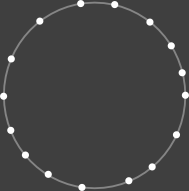
The destination circle, with its nodes deliberately enlarged so you can see them
From the archive
This post was originally published in May 2015 on my old "Mostly a GIS Guy" blog. It has been preserved here and lightly edited for the move to Field Notes.
In order to animate between two shapes in SVG you need an equal number of nodes. This is because the node coordinates are what get adjusted during a transition. If one shape has more than another you get some really weird behaviour.
One approach is to manually edit one of the paths so the number of nodes matches the other. But that is pretty time consuming. I opt for the lazy approach of stuffing it through a filter.
I wrote polymorph to make the calculation between two shapes. Essentially transposing the nodes from one shape onto the path of another.
Start with a complex shape
This is a little over-simplified… but you start with a complex shape with lots of nodes.
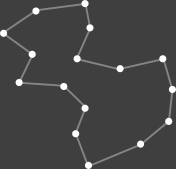
Input shape — a many-noded polygon
Then say you want to animate it into a simple circle like this.
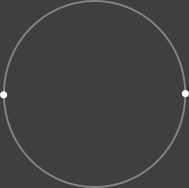
Destination shape — a simple circle
Note the destination path contains arcs. Polymorph can handle any type of SVG path for the destination. The source, and more complex, path must always contain linear lines. See SVG Path for more details.
Transpose the nodes
Here are the two paths and the single call that maps one onto the other:
var inputShape = "m 14.108932,44.306697 33.663417,-22.772311 49.257499,-6.435654 4.702982,24.504988 -13.613886,30.693115 42.326796,10.14853 44.80204,-10.14853 8.91091,30.940645 -3.46535,31.18816 -28.46539,23.51489 L 99.752625,177.72274 87.128843,144.55437 97.277373,118.56423 75.000112,97.029549 30.44559,94.059247 44.059472,65.841383 14.108932,44.306697";

var destinationShape = "m 191.90169,310.3161 a 51.514591,51.514591 0 1 1 -103.029181,0 51.514591,51.514591 0 1 1 103.029181,0 z";

var newShape = polymorph.transpose(inputShape, destinationShape);
The nodes are obviously enlarged for the purposes of this post. But you end up with a shape that is almost identical to the destination shape. However, the node numbers match.
You can transpose nodes in any direction. However, it makes most sense to convert from high to equal or less complexity.
Animate between them
Now use one of the handy dandy SVG libraries, such as Snap, Velocity, or D3, to transform between the two. The following example uses D3 to transform from geographic boundaries (just SVG paths) into circles, and back again.
Live demo · Open on CodePen ↗